

Kadence install

For non-technical users, you may want to have us install the theme for you, which can save a lot of time.
See the instructions below for DIY Kadence setup instructions. Everyone has different levels of experience and knowledge, so you may find this either too basic or too advanced - please send in a support ticket if you need further assistance.
Jump to:
Always use a staging site
You can run into any number of problems when performing updates or theme changes, and should always do your updates on a staging site to make sure that if anything goes wrong, your live site is unaffected.
Staging sites should be offered at the host level, and your host can provide you with guidance on using their specific setup.
If your host doesn't offer staging sites, then you should change hosts before proceeding - see hosting. A quality host is an absolute necessity for running a content site.
Demo content
There is no demo content to import. This tutorial assumes you have an existing site with existing content.
If you have a new site without existing content we recommend getting a new copy of the demo site, or publishing some placeholder posts on your existing site.
Install and Configure Kadence
Homepage
If you haven't previously set up the Modern Homepage, do so now, following that tutorial.
Sidebar
If you haven't previously set up the Modern Sidebar, do so now, following that tutorial.
Thumbnails
If you haven't previously set up the Modern Thumbnails, do so now, following that tutorial.
The Image Optimization Guide is a must-read to understand how images work, size requirements, what pre-upload and post-upload image optimization is required, and important information about accessibility.
If you come from a fully configured Feast Plugin with Foodie Pro 5 setup, then this does not change.
Kadence tutorials
You can find the full set of Kadence tutorials and how to configure different parts of the website at the Kadence tutorials.
We strongly recommend reviewing the Important and Safe customizations sections of the Kadence tutorials.
Support
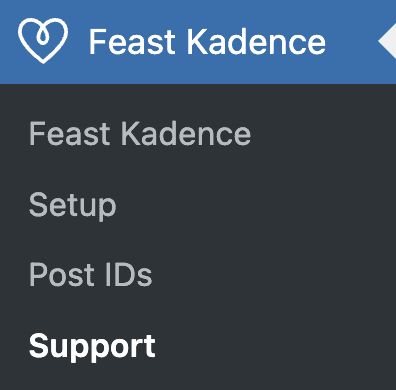
Simply navigate to your WordPress Admin > Feast Kadence > Support
Analytics
We recommend Google Site Kit for Analytics.
Some old themes had the analytics integration in the theme files, which is not where they belong. If your analytics disappears after updating to Kadence, go ahead and set it up again using the Google Site Kit Plugin.
Analytics set up through code snippets, Monster Insights, or similar plugins should be unaffected by a theme change.
Caching
If changes you make aren't being applied to your site, you likely need to clear your cache. If the instructions in that tutorial don't work, please contact your host for further assistance.
Compatibility
Check out the compatibility page for the most up-to-date information on supported WordPress and PHP versions.
Sites running PHP versions older than PHP8.3 should contact their host 1 week after setting up the Kadence theme, to upgrade their PHP server software. Note that plugins unrelated to Feast