

Clear cache
The most common issue we get is "my site isn't updating with my changes" and in 99% of cases, this is a simply cache clearing issue.
There is no caching functionality in the theme, and this document serves as our complete guide to self-troubleshooting.
Follow the below steps in order, and allow for 10-30 minutes for your cache to rebuild depending on your setup. If the steps below don't resolve your caching issue, please contact your host for additional assistance.
Jump to:
1. WP Rocket
First: Make sure WP Rocket is properly configured in Admin > Feast Plugin > Setup > WP Rocket
WP Rocket is our only supported caching plugin. You can hover over the "WP Rocket" admin bar and click:
- Clear and preload cache
- Clear Used CSS
- Clear Priority Elements
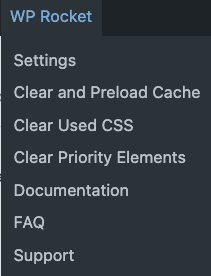
If you have a styling change that isn't showing up, also click "Clear Used CSS" and "Clear Priority Elements".
You may need to wait 2-3 minutes for the cache to fully reset.
2. BigScoots
After clearing WP Rocket, if the issue still isn't resolved, you may need to contact your host (eg. BigScoots).
If you're on BigScoots, you usually automatically have some level of additional caching, or you may have signed up for additional caching.
You can hover over the "BigScoots Cache" in the admin bar and click "Clear Cache for Entire Site":
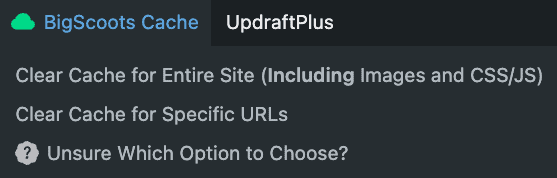
Note: make sure to clear WP Rocket first.
If you don't have this option, contact BigScoots directly for assistance.
3. NerdPress
If you have nerdpress, you can hover over their admin bar and click "Clear Cloudflare Cache":
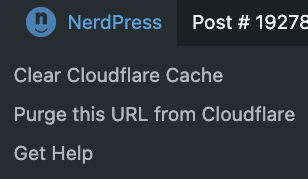
Note: make sure to clear WP Rocket first.
4. Browser
Browsers keep local copies of files for improved pagespeed loading, and this can sometimes cause visual or functionality issues, especially in the block editor.
In most Mac devices, this is cmd+shift+r.
On most Windows devices, this is cntrl+shift+r.
Search Google for further cache and cookie clearing instructions specific to your device and browser.
You should check your site in an incognito/private browser session to verify it's not a browser caching issue.
5. Device cache
If you've cleared your cache, had BigScoots (or other host) and/or NerdPress clear your cache, and the issue still persists, then you likely have a device caching issue. Device caches do not represent what your visitors see, who are getting a fresh copy of the page from your host.
You'll want to Google instructions on how to clear your device/browser cache.
You might also want to try restarting your device/computer to clear the cache.
Unfortunately, there is nothing we can do to clear your device cache.
6. ISP, DNS and Cloudflare
There may be some caching going on at the ISP level, DNS, or via Cloudflare.
These are complex issues that are outside of our expertise and should be researched via Google.
We do not recommend using Cloudflare unless it's managed by NerdPress or Bigscoots.
OMGF
While OMGF comes with some benefits, it also aggressively caches fonts. If you have OMGF, and you've reset your fonts in Feast+ and they're not showing up, you need to clear your OMGF font cache.
Hover over the "OMGF" admin bar item and click "Re-run fonts optimization":
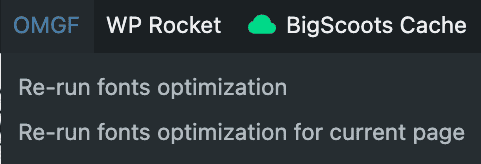
Autoptimize
We don't currently support Autoptimize, and you shouldn't have Autoptimize AND WP Rocket installed.
This should be removed unless managed by NerdPress.
Jetpack
We don't support Jetpack cache.
Siteground / SG Cache
We don't support Siteground caching.