

Accessibility
This page is a work in progress and represents the best of our current understanding at the time it is being viewed. It is not an authoritative document and not prescriptive.
Keep in mind that:
No website will ever been 100% accessibility compliant. Most accessibility failures will be due to implementation error (eg. how you write content, how you configure your site).
What Feast can do is reduce your overall accessibility burden. We can eliminate maybe 20-30 errors/issues, out of maybe 100.
Accessibility standards (and peoples understanding of them) will change over time, and as such, your site will never be "finished" being accessibility compliant.
It's also important to note that there are sometimes different schools of thought, and these schools of thought sometimes conflict, within the accessibility space.
Jump to:
Themes
The themes were not designed for ADA compliance.
As an off-the-shelf theme designed in 2015 and updated throughout the years, this was never a concern. Much like pagespeed became a hot topic in 2019, accessibility has started receiving scrutiny in 2020.
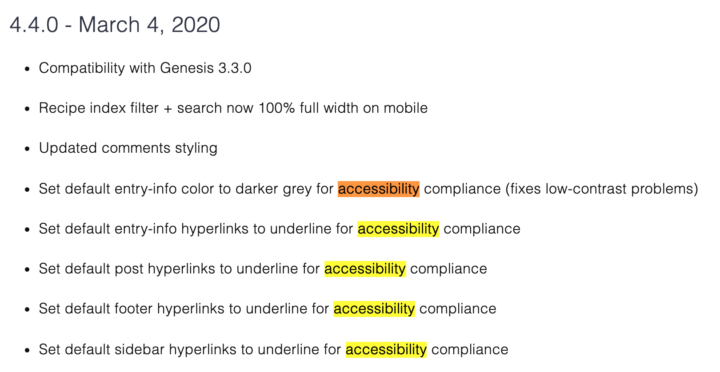
While the theme updates are bringing us more in-line with ADA requirements, the specifics are too nuanced for a $75 theme. Among updates we've made are:
ADA compliance requires custom development from an experienced ADA developer, plus training and guidance. At this time, ADA compatible theme development/customization costs $10,000+.
Part of this has to do with liability. We are not willing to take on responsibility and risk from lawsuits for $100.
For reference, here's the accessiBe service for automated compliance.
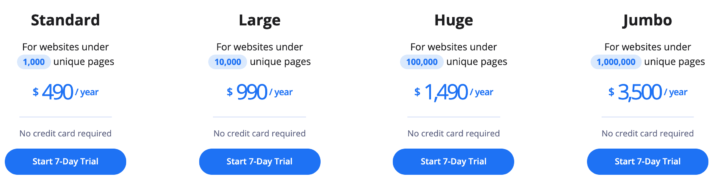
Update 2020/05/24: even accessiBe is not a complete solution (thanks Casey)
There are things that we can do on the theme and plugin side to get you closer (eg. the keyboard-based "navigation links"), but there are things that are entirely your responsibility.
Additional reading from Carolina on theme accessibility compliance.
There are some other themes that claim to be "ADA compliant" but for the most part, this is misleading (if not an outright lie). It's impossible for a theme to cover the full scope of compliance.
Feast Plugin
The Feast Plugin is being developed with accessibility in mind, and does a much better job than the themes. For example, see: Modern Homepage vs. Theme Homepage and Rethinking the Homepage.
But the plugin does not offer an ADA compliance guarantee either.
At the moment, there's no easy-to-follow guide that we're aware of. For example, the WCAG 2.1 checklist is a technical document that reads like molasses and can only be implemented manually by throwing dozens of $100/hr developer man-hours at, after a $x000 dollar audit from an accessibility specialist.
This is not something that's reasonable to expect from a $75 off-the-shelf theme or $199/year plugin. We are working towards improving accessibility compliance as much as possible so that you have less work to do.
Among improvements we've made:
- Significantly improved internal links by replacing the "Featured Posts widget" with the FSRI block to:
- remove redundant links
- properly use aria-role="decorative" and no alt text for decorative images
- removed incorrect use of article schema, incorrect use of heading tags
- added visual indicator of currently selected item when navigating by keyboard
- provided better guidelines for using the FSRI block
- Replaced the mobile and accessibility-unfriendly recipe index with the Modern Recipe Index
- Removes the use of "Featured Posts widget" (outlined above)
- Removes any reference to use the date-based, or category-based drop down menu
- Created the Modern Mobile Menu to remove questionable javascript, and create a mobile/accessibility-first menu that removes cumbersome drop down navigation menus
Your responsibility
Complying with accessibility guidelines remains 100% the site owners responsibility. You are in full control of the content you write, the headings you use, the links you use, the navigation you create, and more.
Common issues food bloggers encounter are:
- font size too small
- this is especially problematic when using a custom imported Google Font
- low contrast (eg. fancy colors that don't offer enough contrast)
- also: background colors that reduce the contrast with text
- missing alt text on images
- see this alt text decision tree on how to write alt text
- using incorrect anchor text on links
- do not use "read more" or "see all"
- using heading tags incorrectly
- using javascript-based plugins for navigation
- do not use plugins to organize/filter your content that rely on javascript, such as for the recipe index
See this quick accessibility self-audit tutorial from Andrew @ Nerdpress.net
Testing tools
You can check your site's accessibility compliance using the Wave tool by Webaim.
This tool evaluates compliance on a page-by-page basis - you'll want to check your homepage, categories and posts all separately.
Prioritize your efforts on:
- the homepage
- your top 10 posts
- then work through your categories and the remainder of your posts
Overlays
The userway.org javascript snippet adds a little icon to your site that allows users to customize some common accessibility issues - font size and contrast for example.
However, this does not automatically fix accessibility issues on your site.
We previously recommend overlay tools, but have now been made aware that these may actually be worse based on feedback from accessibility experts.
See this article on accessibility overlays from Casey.
There is no quick fix.
We recommend avoiding any overlays, and instead, focus on manually resolving accessibility issues at their root cause.
Buttons vs. links
The themes were originally built to display some links as buttons, however this may not be the best setup for accessibility.
This is something we'll look into, in greater details. See: buttons vs links.
External links
External links need to be clearly marked as such, so that the user is aware when they're leaving your site.
We recommend the WP External Links plugin to manage the visual and aria notifications for external links.
Drop down menus
The themes were initially designed to allow for drop down menus as part of the navigation menu. For both pagespeed and accessibility, we're no longer recommending or supporting submenus in the navigation.
Primary navigation menu
For maximum accessibility compliance, navigation menus should be short and concise.
Rather than use drop down menus and overstuffing the navigation, you should create indexes to help readers (and Google) navigate down through your site through topical silos.
Navigate by headings
According to the WebAIM survey from 2019, almost 70% of screen reader users navigate a webpage primarily by headings:
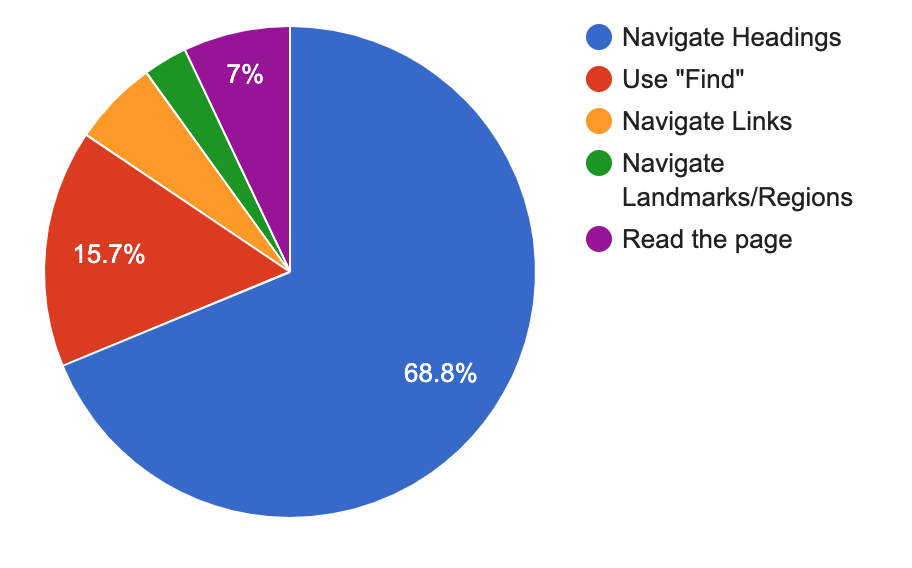
This is why it's important to use proper headings in your content.
A further 15% simply use the "find" feature.
Resources
- How to make websites accessible (Ontario.ca)
- W3C web accessibility guidelines
- WAVE tool by WebAIM
- CampusPress WordPress Accessibility Guide
- Shopify documentation on accessibility theme customizations
- Making WordPress Accessible (WPMU)
- Andrew Wilder's MVCon Accessibility presentation (Youtube)
- How to meet increased demand for accessibility (Kim Krause Berg)
- Most popular screen readers (WebAim 2019)
- Browser + screen reader combinations (WebAim 2019)
- Website ADA Compliance checklist (PDF)
- Discussion group from Hadley.edu on recipes (April 22, 2020)
- Axe 3.5 Accessibility ruleset
- Hiding content responsibly
- Modern CSS upgrades to improve accessibility
- WP Rocket Accessibility Doc
- Modern CSS Upgrades to Improve Accessibility
"Accessibility Ready" themes
Some themes promote themselves as "Accessibility Ready", more information can be found at this post in accessible wordpress themes. You can find the official accessibility ready theme guidelines here.
This is absolutely a step in the right direction, but only covers a very small fraction of what ADA compliance requires.
The accessibility-ready requirements are based on WCAG2, but it is important to be aware of the disclaimer that a theme alone cannot guarantee that your website will be compatible with WCAG2 or other guidelines. Your theme is only one part of your website. Your content must also be accessible.
WordPress accessible themes documentation
For example, this Axe 3.5 ruleset just for screen readers is huge, which is only a portion of what "Accessibility" means.
You can find a list of "accessibility ready" themes here, which demonstrates just how lacking this is - they're blank sites with no content or functionality:
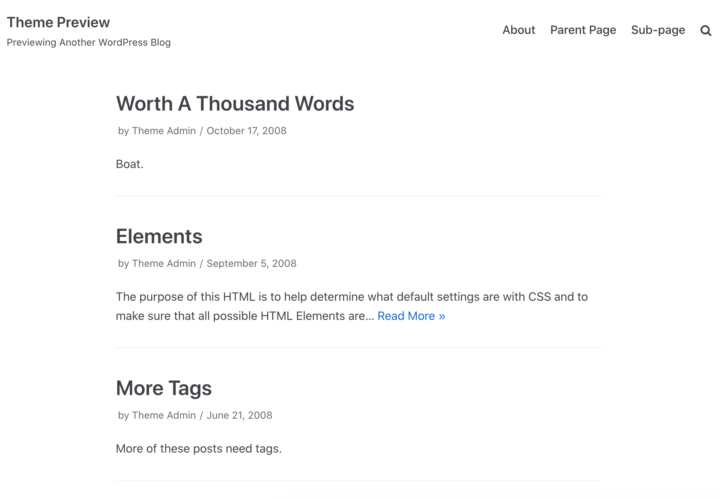
Starting with an "accessibility ready" theme means having to pay a private developer $10,000 to then build out ADA-compliant functionality.
To the best of our understanding, "Accessibility Ready" gets you maybe 5% of the way towards ADA compliance, and as such, is not a standard worth worrying about.
What "accessible" means is an evolving standard, and as moving target, will change frequently over the foreseeable future.
Prefers reduced motion
In macOS (as well as other operating systems) you can enable a software setting to "prefer reduced motion", which will reduce animations in the system and in web sites that support it.
The Feast Plugin 7.7.2 introduced support for this setting.
Accessibility statement
Here's the w3 accessibility statement generator that you can use to generate an accessibility statement.
- Select WCAG 2.0
- Select partially compliant
- Make sure to add contact information